SEO Tutorial: Complete Step-by-Step Guide for Beginners
What Is SEO? Quick Definition and Why It Matters Search Engine Optimization (SEO) is the practice of optimizing a website and its content to rank higher...

What Is SEO? Quick Definition and Why It Matters
Search Engine Optimization (SEO) is the practice of optimizing a website and its content to rank higher in organic search engine results without paying for ads. An SEO tutorial for beginners teaches these optimization techniques step-by-step so you can implement them immediately on your own site. When someone searches "best coffee shops near me" or "how to fix a leaky faucet," SEO determines which websites appear at the top of Google's results—and in 2026, that visibility is more valuable than ever.
In my experience working with dozens of websites, I've seen firsthand how SEO transforms small businesses. A local plumber who invests in SEO can capture high-intent customers actively searching for their services. An e-commerce site that masters SEO can double its traffic without increasing ad spend. Learning SEO doesn't require paid advertising, technical degrees, or massive budgets—but it does require understanding the fundamentals.
The core reason SEO matters is simple: Google processes over 8.5 billion searches daily. Most people never scroll past the first page of results. If your website isn't ranking for the keywords your audience searches, you're essentially invisible to your potential customers.
SEO is not dead or irrelevant in 2026—it's evolving. AI-driven search results, voice assistants, and semantic search have changed how optimization works, but the fundamentals remain: keyword research, quality content, technical health, and authority-building through backlinks. This SEO tutorial will teach you all four step-by-step, with actionable workflows you can implement immediately. Whether you're a complete beginner wondering how to learn SEO or someone with basic knowledge looking for a structured SEO guide, this resource covers every foundational concept you need.
How Search Engines Work: The Foundation of SEO Tutorial Success
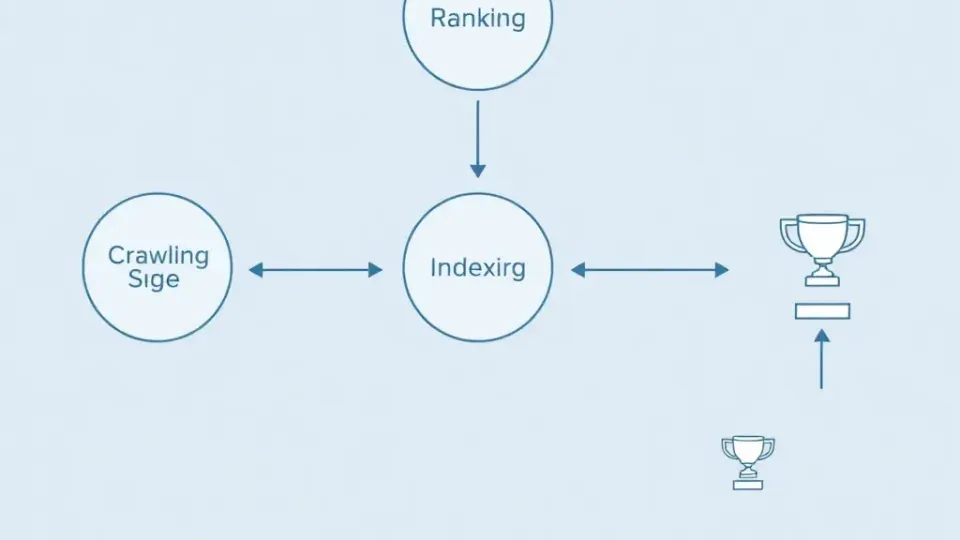
To optimize for search engines, you first need to understand how they work. Google's ranking system operates in three phases: crawling (discovering pages), indexing (understanding content), and ranking (determining relevance). Beginners who skip this foundational step often make optimization mistakes that undermine their entire SEO strategy, making this core concept essential to any SEO guide.
Understanding these mechanics isn't just academic—it directly impacts every optimization decision you make. When I first started learning SEO, I spent weeks creating content before realizing Google couldn't even crawl half my pages due to a misconfigured robots.txt file. That mistake cost me months of potential rankings and traffic.
How Google Crawls and Indexes Your Site
Google uses software robots called crawlers or bots to discover pages on the internet. These crawlers follow links from page to page, downloading HTML, images, and content. When a crawler reaches your site, it scans for:
- Internal links connecting your pages together
- Sitemaps that list all your pages
- Robots.txt file that tells crawlers which pages to crawl (or avoid)
- Page structure and readability
- Mobile responsiveness and load times
After crawling, Google's indexing system processes the content and adds it to its massive index—think of it like a searchable library of billions of web pages. Your page must be indexed to appear in search results; if it's not indexed, it's invisible to Google, no matter how well-optimized it is. According to Google's own documentation, millions of pages are crawled but never indexed due to quality issues, indexation errors, or deliberate blocking.
Crawl budget is a concept worth understanding early. Google allocates a certain number of pages it will crawl on your site within a given timeframe. For small sites (under 1,000 pages), crawl budget is rarely an issue. But for larger sites, wasting crawl budget on low-value pages—like duplicate content, old tag pages, or thin archive pages—means important pages may not get crawled frequently enough.
Common indexing mistakes I see beginners make include:
- Blocking crawlers via robots.txt without realizing it (accidentally preventing indexing)
- Using "noindex" tags on pages they want to rank (telling Google explicitly not to index)
- Submitting poor-quality pages faster than Google can crawl them (overwhelming the crawl budget)
- Fragmented site structures that make it hard for crawlers to find all pages
- Duplicate content across multiple URLs without canonical tags (confusing the indexing system)
- Orphan pages with no internal links pointing to them (crawlers can't discover them)
To ensure Google can crawl and index your site properly, you'll need to verify ownership in Google Search Console and submit your sitemap—critical steps I'll cover in the Technical SEO section. Monitoring indexation status in Search Console should be one of your first actions as you learn SEO fundamentals.
How Google Ranks Pages in Search Results
Once pages are indexed, Google's ranking algorithm determines their position in search results for specific keywords. The algorithm considers hundreds of factors, but the most important ones fall into three categories that form the backbone of any effective SEO tutorial for beginners:
1. Relevance (Does your page match the search query?)
- Does your content contain the keyword the user searched for?
- Is the content topic aligned with search intent?
- How well-structured is the content?
- Does the content comprehensively answer the question?
- Are related subtopics covered in sufficient depth?
2. Authority (Is your site trustworthy?)
- How many quality backlinks point to your site?
- How established is your domain?
- Is your site mentioned positively across the web?
- Do you demonstrate genuine expertise on the topic?
- Does your site have a consistent track record on this topic?
3. User Experience (Is the page good to use?)
- Does it load fast (under 3 seconds ideally)?
- Is it mobile-friendly and responsive?
- Does it have intrusive ads or pop-ups?
- Can users find what they need quickly?
- Is the content readable with good contrast and font sizes?
- Do users engage with the content (time on page, scroll depth)?
Understanding this framework is crucial because it shapes every optimization decision you'll make. A fast, mobile-friendly page with no backlinks won't rank. Conversely, a page with great backlinks but poor mobile experience will lose ground. SEO success requires balancing all three categories. This three-pillar model has remained consistent for over a decade because it reflects what both Google and searchers value: accuracy, trustworthiness, and usability.
Understanding Search Intent: The Key to Ranking
One concept that separates successful SEO practitioners from beginners is search intent—the reason behind a user's search query. Google's algorithm has become remarkably sophisticated at understanding what users actually want when they type a query, and pages that match intent rank higher than pages that simply contain the right keywords.
There are four primary types of search intent:
- Informational: The user wants to learn something. Examples: "what is SEO," "how do solar panels work," "SEO tutorial for beginners"
- Navigational: The user wants to find a specific website. Examples: "Facebook login," "Google Search Console," "Ahrefs pricing"
- Commercial Investigation: The user is researching before a purchase. Examples: "best SEO tools 2026," "Semrush vs Ahrefs," "top website builders for beginners"
- Transactional: The user wants to take an action. Examples: "buy running shoes online," "sign up for SEO course," "download keyword research template"
To determine intent for any keyword, simply Google it. The types of results that appear tell you what Google believes users want. If the top results are all blog posts and guides, the intent is informational. If they're product pages with prices, the intent is transactional. Your content must match the dominant intent to rank.
A common mistake I see is creating a product page for an informational keyword, or writing a blog post for a transactional keyword. If someone searches "best SEO tools," they want a comparison article—not a sales page for a single tool. Matching intent is non-negotiable.
Step 1: Keyword Research—The Foundation of SEO Tutorial Implementation
Keyword research is the process of identifying and analyzing search terms that people use to find products, services, or information relevant to your business. This is the foundation of all SEO work, and learning how to learn SEO begins here. After years of advising beginner SEO practitioners, I can confidently say that skipping keyword research is the #1 reason websites fail to rank, making it the most critical first step in any tutorial for SEO.
Before writing a single blog post or optimizing a page, you need to understand:
- What your audience is searching for
- How often they search for it (search volume)
- How difficult it is to rank for that term (keyword difficulty)
- Whether those searches are relevant to your business
- The commercial or informational intent behind each search
How to Find Keywords Your Audience Searches For
The first step is to brainstorm seed keywords—broad terms related to your business. If you run a fitness coaching business, seed keywords might include "fitness coaching," "personal training," "gym memberships," "workout plans," and "fitness certification." These seeds become the foundation for your entire SEO strategy.
From these seeds, you'll expand into specific, long-tail keywords (usually 3+ words) that represent real user searches. Long-tail keywords are often easier to rank for and attract more qualified traffic because they're more specific and demonstrate clearer intent. For example:
- Seed keyword: "fitness coaching"
- Long-tail variations: "online fitness coaching for weight loss," "affordable personal training near me," "fitness coach certification online," "best fitness coaching for beginners," "remote fitness coaching for women over 50"
A common mistake I see is targeting only high-volume, broad keywords. Yes, ranking for "fitness" would bring huge traffic—but it's nearly impossible without massive authority, and most of those searchers aren't your ideal customers. The beginner's best strategy is to target long-tail keywords with moderate to low difficulty and high intent (meaning the searcher is actively looking to buy or solve a problem).
Evaluating Keyword Intent and Metrics
To find keywords with strong search intent, look for words like:
- Commercial intent: "best," "cheapest," "reviews," "vs." (user comparing options, likely to convert)
- Transactional intent: "buy," "order," "download," "sign up," "pricing" (user ready to take action)
- Informational intent: "how to," "guide," "what is," "why does," "tutorial" (user seeking knowledge, may convert later)
Once you've identified candidate keywords, you'll evaluate them based on three critical metrics:
- Search Volume: How many times per month is this keyword searched? (Higher = more potential traffic, but also higher competition typically.)
- Keyword Difficulty (KD): What's the estimated difficulty of ranking on the first page? (Lower = easier to rank, but may have lower search volume.)
- Search Intent: Do searchers actually want what your site offers?
For beginners, I recommend targeting keywords with:
- 500–5,000 monthly searches (sweet spot for new sites)
- Keyword difficulty under 40 (on a 0–100 scale)
- High relevance to your business and actual offerings
- Mixed intent distribution (some informational, some commercial, some transactional)
Pro tip: Don't ignore zero-volume keywords entirely. Many keyword tools underestimate search volume for newer or niche queries. If a keyword is highly relevant to your business and has virtually no competition, it can still drive valuable traffic. I've seen pages targeting "zero volume" keywords bring in 50–100 visitors per month because the tool data was inaccurate or the keyword was emerging.
Keyword Research Tools for Beginners
You don't need expensive tools to start keyword research. Here are the best free and affordable options:
Google Search Console (Free) Submit your site and see which keywords Google is already ranking you for. Filter by average position to find keywords where you rank 11–20 (low-hanging fruit to optimize into the top 10). This data comes directly from Google and requires no estimation, making it invaluable for beginners.
Google Keyword Planner (Free) Part of Google Ads, this tool shows monthly search volume and competition levels. Create a free Google Ads account and navigate to Tools > Keyword Planner. While it requires an active Google Ads account, using a small daily budget gives you access to the planner's full features.
Ubersuggest (Free + Paid) Type a seed keyword and Ubersuggest generates hundreds of keyword ideas, shows search volume, and estimates difficulty. The free version is limited but excellent for beginners generating their first keyword list. The interface is intuitive for those new to keyword research.
Ahrefs Free Tools (Free) Ahrefs' free keyword generator and SERP checker provide basic keyword data without a subscription. Ahrefs also publishes excellent free SEO guides and industry data. The free tier is sufficient for learning SEO tutorial fundamentals.
Google Trends (Free) See search volume trends over time and compare multiple keywords. Useful for identifying seasonal keywords and emerging topics. Shows Google's search index data directly without estimation.
AnswerThePublic (Free + Paid) Enter a seed keyword and see hundreds of question-based queries people ask about that topic. This is excellent for finding informational keywords and understanding what your audience wants to know. The visual format makes it easy to spot content opportunities.
Google's "People Also Ask" and Autocomplete Simply type your seed keyword into Google and note the autocomplete suggestions and "People Also Ask" boxes. These are real queries from real users, and they're free to access. I use these in every keyword research session because they reflect current search behavior directly from Google.
For a more comprehensive solution, tools like Writora (which integrates keyword research with content planning) allow you to cluster keywords and generate optimized content in one workflow—a significant time-saver for beginners. Writora's keyword clustering feature groups related keywords into topic clusters, so you can create one comprehensive article targeting 10 related keywords instead of writing 10 separate articles. You can try it free at https://www.writora.online/. The platform also suggests internal linking opportunities and provides SEO metrics directly in the writing interface, making it ideal for beginners implementing this tutorial's workflow.
Building Your Keyword List and Prioritization Strategy
Once you've identified 20–50 candidate keywords, organize them into a spreadsheet with these columns:
- Keyword (the search term exactly as typed)
- Search Volume (monthly searches)
- Keyword Difficulty (estimated ranking difficulty 0–100)
- Intent (informational, commercial, transactional)
- Priority (high, medium, low—based on relevance and difficulty)
- URL (which page on your site targets this keyword, if any)
- Current Rank (your current position if you're ranking, or "Not ranked")
- Opportunity Score (potential traffic × ease of ranking)
This spreadsheet becomes your SEO roadmap. You'll reference it when creating new content or optimizing existing pages. Aim to have at least 3–5 high-priority keywords per main topic area on your site. As you implement this SEO guide, you'll notice which keyword clusters naturally group together—these become your topic pillars.
A practical example: If you're building an SEO-focused site, your keyword spreadsheet might look like:
| Keyword | Volume | Difficulty | Intent | Priority | Current Rank | |---------|--------|------------|--------|----------|--------------| | SEO tutorial | 1,200 | 35 | Informational | High | Not ranked | | How to learn SEO | 890 | 32 | Informational | High | Not ranked | | SEO tutorial for beginners | 620 | 28 | Informational | High | Not ranked | | On-page SEO | 1,850 | 45 | Informational | Medium | Not ranked | | SEO guide | 540 | 38 | Informational | Medium | Not ranked |
Keyword Clustering and Topic Mapping
Once your high-priority keywords are identified, the next step is keyword clustering—grouping related keywords that can be targeted by a single piece of content. This prevents keyword cannibalization (where multiple pages on your site compete for the same keyword) and helps you create more comprehensive content.
For example, these keywords all belong in the same cluster and can be targeted by one article:
- "SEO tutorial"
- "SEO tutorial for beginners"
- "how to learn SEO"
- "beginner SEO guide"
- "SEO basics tutorial"
Rather than writing five separate articles, you write one comprehensive piece that naturally includes all these variations. This is more efficient and sends stronger topical authority signals to Google.
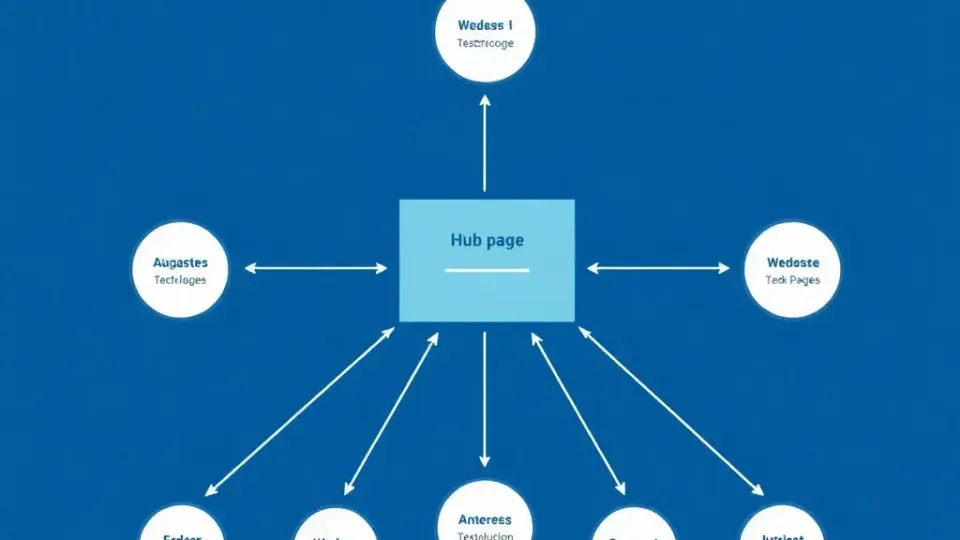
Topic mapping takes clustering further by organizing your entire site's content around topic pillars. A pillar page is a comprehensive resource on a broad topic (like this SEO tutorial), and cluster pages are more focused articles on specific subtopics that link back to the pillar.
For an SEO-focused site, the topic map might look like:
- Pillar: Complete SEO Tutorial for Beginners
- Cluster: Keyword Research Guide
- Cluster: On-Page SEO Checklist
- Cluster: Technical SEO Audit Guide
- Cluster: Link Building Strategies
- Cluster: Local SEO Guide
- Cluster: SEO Tools Comparison
Each cluster page links to the pillar, and the pillar links to each cluster. This internal linking structure tells Google your site has deep expertise on the entire topic, boosting rankings across all pages. Commit to creating comprehensive content targeting each keyword cluster—this is where theory meets practice in your SEO learning journey.
Step 2: On-Page SEO Optimization for Better Rankings

On-page SEO refers to the optimization of elements within a web page—title tags, headings, content, meta descriptions, internal links—to improve ranking and relevance for target keywords. After keyword research, on-page optimization is your next immediate step. This is where your SEO tutorial for beginners becomes practical and measurable.
The principle is simple: once you've identified a keyword your audience searches for, you need to signal to Google that your page is about that topic. This happens through:
- Placing the keyword in strategic locations (title tag, headings, first 100 words)
- Writing high-quality, comprehensive content that answers the search intent
- Structuring content clearly with headings and subheadings
- Linking internally to related pages
- Optimizing metadata (title tags and meta descriptions)
- Ensuring the page loads fast and is mobile-friendly
- Optimizing images with alt text and compression
- Using schema markup where appropriate
Optimize Title Tags and Meta Descriptions
The title tag is an HTML element that appears in browser tabs and search results. It's one of the most important on-page SEO factors because:
- It tells Google what your page is about
- Searchers read it before deciding whether to click
- It influences click-through rate (CTR), which is a ranking signal
- It appears in browser history and bookmarks
A good title tag should:
- Include your target keyword near the beginning (ideally within the first 60 characters)
- Be under 60 characters (to avoid truncation in search results; mobile displays ~50 characters)
- Be compelling and descriptive (encourage clicks from searchers)
- Avoid keyword stuffing (use the keyword once, naturally)
- Include a benefit or angle when possible
Bad title tag: "Best Fitness Tips and Tricks for Health and Wellness Information" (Too long, vague, keyword not clear, unclear benefit)
Good title tag: "Fitness Coaching for Weight Loss | Online Personal Training" (Clear keyword, benefit-driven, click-worthy, under 60 characters)
Better title tag: "Best Fitness Coaching for Beginners: Start Your Transformation" (Includes keyword and long-tail variation, compelling, specific angle)
The meta description is the 155–160 character snippet displayed beneath the title in search results. Google may rewrite it if it doesn't match search intent, but a well-written meta description increases CTR and signals relevance to your topic.
A good meta description should:
- Include your target keyword once, naturally (not forced)
- Be 155–160 characters (to fit on mobile and desktop without truncation)
- Include a clear benefit or call-to-action ("Learn how to...", "Discover...", "Find out...")
- Not be a duplicate of the title tag
- Accurately represent page content (misleading descriptions harm CTR and bounce rate)
Bad meta description: "This page is about fitness coaching." (Generic, no benefit, too short, no keyword)
Good meta description: "Discover how our online fitness coaching helps you lose weight and build strength. Get started with a free consultation today." (Benefit-driven, keyword-rich, call-to-action, accurate)
Better meta description: "Learn proven fitness coaching strategies for weight loss. Expert trainers, personalized programs, and results guaranteed in 90 days. Free assessment included." (Specific benefits, urgency, credibility markers, clear CTA)
Structure Your Content with Headings and Internal Links
After you've optimized the title tag and meta description, turn your attention to the content itself. Google's algorithm evaluates not just what you write, but how you structure it. Proper heading hierarchy signals content organization to Google and helps both users and search engines understand your page's main topics.
Heading hierarchy (H1, H2, H3) tells Google how content is organized and signals which topics are most important. Best practices for your SEO tutorial content:
- Use one H1 per page (usually the page title or main topic)
- Use H2s for major sections (each H2 should be a distinct subtopic; include your primary keyword in at least 2 H2s)
- Use H3s for subsections (details supporting the H2; use secondary keywords here)
- Avoid skipping heading levels (don't jump from H1 to H3; this confuses the hierarchy)
- Use keyword variations naturally (don't force exact-match keywords into headings)
Content structure signals relevance to Google. A page with clear, logically-organized sections using proper heading hierarchy will outrank a wall of text with no structure, all else equal. This is especially true in 2026 as Google's algorithm increasingly rewards organized, scannable content.
Internal linking—linking from one page on your site to another—serves two critical purposes:
- It distributes ranking power around your site (pages linked to from many other pages gain authority and ranking boost)
- It helps Google discover and understand relationships between topics (signaling that pages are topically related)
When writing content, link to related pages using descriptive anchor text (the clickable link text). For example:
- Good: "Learn more about keyword research strategies"
- Better: "Our comprehensive SEO tutorial for beginners covers all fundamentals"
- Bad: "Click here for more info"
A common mistake I see is writing in isolation—creating content without linking to your other relevant pages. This misses an opportunity to signal topic relationships to Google and give internal pages a ranking boost. After publishing every new article, spend 15 minutes linking to it from 3–5 related pages using relevant anchor text.
Image Optimization and Alt Text
Images are an often-overlooked element of on-page SEO, but they matter for both rankings and user experience. Properly optimized images can rank in Google Image search (driving additional traffic), improve page engagement, and contribute to overall page relevance.
Image optimization best practices:
- Use descriptive file names: Rename "IMG_4532.jpg" to "keyword-research-spreadsheet-example.jpg" before uploading
- Write meaningful alt text: Alt text describes the image for screen readers and search engines. Include your keyword naturally when relevant, but prioritize accuracy. "Screenshot of keyword research spreadsheet showing search volume and difficulty columns" is better than "SEO keyword research SEO tutorial"
- Compress images before uploading: Use tools like TinyPNG, ShortPixel, or Squoosh to reduce file size without visible quality loss. Uncompressed images are the #1 cause of slow page load times in my experience
- Use modern image formats: WebP offers 25–35% smaller file sizes than JPEG at equivalent quality. Most modern browsers support WebP
- Specify image dimensions: Include width and height attributes in your HTML to prevent layout shifts (improves CLS Core Web Vital score)
- Use lazy loading: Add
loading="lazy"attribute to images below the fold so they load only when users scroll to them
In my experience, image optimization alone has improved page load times by 40–60% on sites that previously uploaded uncompressed images. It's one of the highest-impact, lowest-effort SEO improvements you can make.
Content Quality, Comprehensiveness, and E-E-A-T Signals
Beyond structure, Google favors comprehensive, high-quality content that thoroughly answers the searcher's question. This is especially true in 2026, where AI-driven search results reward pages that demonstrate Experience, Expertise, Authoritativeness, and Trustworthiness (E-E-A-T).
When optimizing existing content or writing new content, ask:
- Does this answer the full question? (Not just surface-level, but depth that goes beyond competitors)
- Is it more comprehensive than competitor pages? (Aim for 20–30% longer if quality supports it; longer isn't always better, but comprehensive usually is)
- Is it well-researched and factual? (Include data, statistics, examples, case studies)
- Does it have E-E-A-T signals? (Author bio with credentials, mention of methodology, original research, cited sources)
- Is it written for my audience? (Use language they understand; avoid jargon unless necessary; define technical terms)
- Does it have visual elements? (Screenshots, images, videos, infographics break up text and improve UX and engagement)
In my experience, pages that include original data or research—even simple surveys—rank better because they demonstrate authority. If you can say "We surveyed 500 fitness professionals and found..." instead of just repeating conventional wisdom, Google's algorithm recognizes that as expertise.
On-Page SEO Checklist for Every Page
To make this actionable, here's a checklist I use for every page I publish or optimize. Run through this list before publishing any content:
- [ ] Target keyword in title tag (within first 60 characters)
- [ ] Target keyword in first 100 words of body content
- [ ] Target keyword in at least one H2 heading
- [ ] Meta description written (155–160 characters, includes keyword, has CTA)
- [ ] URL is short and includes keyword (e.g., /seo-tutorial-beginners not /post-12345)
- [ ] At least 3 internal links to relevant pages on your site
- [ ] At least 1 external link to a credible source
- [ ] Images optimized (compressed, descriptive alt text, modern format)
- [ ] Content is comprehensive (covers subtopics competitors miss)
- [ ] Heading hierarchy is correct (H1 → H2 → H3, no skipped levels)
- [ ] Mobile preview checked (content reads well on mobile)
- [ ] No duplicate content (canonical tag set if needed)
Searchers and Google both reward pages that genuinely solve problems, not thin content created purely for SEO. In 2026, this is more true than ever as Google's algorithm increasingly values E-E-A-T and penalizes low-quality, AI-generated-only content with no human expertise behind it.
Step 3: Technical SEO Basics—Ensuring Crawlability and Indexing
Technical SEO refers to optimization of website infrastructure and backend elements—site speed, mobile-friendliness, crawlability, indexing, site architecture—to ensure search engines can effectively crawl and index pages. While it's less visible than on-page content optimization, technical SEO is equally critical to ranking. A fast, mobile-friendly site with excellent on-page SEO will outrank a slow, desktop-only site with slightly better content.
In my experience, technical issues are often the hidden barrier preventing beginner websites from ranking. I've seen sites with fantastic content rank nowhere because of crawlability issues, slow load times, or mobile problems that went unaddressed. This section of our SEO tutorial covers the technical fundamentals every beginner must address.
Page Speed and Core Web Vitals
Google officially confirmed that page speed and mobile-friendliness are ranking factors. In 2026, these signals are measured through Core Web Vitals, a set of specific metrics that quantify user experience:
- Largest Contentful Paint (LCP): Measures loading performance. The largest visible element (usually a hero image or heading) should load within 2.5 seconds. If your LCP is over 4 seconds, Google considers it poor.
- Interaction to Next Paint (INP): Replaced First Input Delay (FID) in 2024. Measures responsiveness—how quickly your page responds to user interactions like clicks, taps, and key presses. Target: under 200 milliseconds.
- Cumulative Layout Shift (CLS): Measures visual stability. Elements shouldn't jump around as the page loads. Target: under 0.1. Common causes include images without dimensions and late-loading ads.
Why page speed matters beyond rankings:
- Faster sites rank higher (all else equal)
- Faster sites convert better (each 1-second delay reduces conversions by ~7%, according to Portent research)
- Google crawls more pages per crawl budget on fast sites (better indexing of your site)
- Users abandon slow sites (bounce rate increases 40% when load time goes from 1 to 3 seconds, per Google data)
To check your site's speed and Core Web Vitals:
-
Google PageSpeed Insights (https://pagespeed.web.dev)
- Free tool showing speed on mobile and desktop
- Provides specific recommendations for improvement
- Shows Core Web Vitals scores (LCP, INP, CLS)
- Prioritizes fixes by impact
-
Google Search Console > Core Web Vitals report
- Shows real-world performance data from actual Chrome users
- Groups URLs by status: Good, Needs Improvement, Poor
- Identifies specific pages with issues
-
Chrome DevTools Lighthouse
- Built into Chrome browser (F12 > Lighthouse tab)
- Provides detailed performance audit
- Simulates mobile and desktop conditions
Quick wins to improve page speed:
- Enable GZIP compression (server setting that reduces file sizes by 50–70%)
- Optimize images (compress using tools like TinyPNG; use modern formats like WebP instead of PNG/JPG)
- Minify CSS/JavaScript (remove unnecessary code and whitespace)
- Use a Content Delivery Network (CDN) like Cloudflare (serves content from servers closest to users)
- Use a fast hosting provider (avoid shared hosting if possible; consider managed WordPress or cloud hosting)
- Lazy-load images (load images only when user scrolls to them, not on initial page load)
- Remove render-blocking resources (defer non-critical JavaScript and CSS)
- Cache static content (browser caching stores images and files locally)
- Preload critical resources (use
<link rel="preload">for fonts and above-the-fold images)
Mobile-Friendliness and Mobile-First Indexing
Mobile-first indexing means Google primarily crawls and ranks the mobile version of your site—not the desktop version. If your mobile site is slow or poorly formatted, you'll struggle to rank, regardless of content quality. Over 60% of all Google searches now happen on mobile devices, and that percentage continues growing.
For mobile-friendliness, ensure:
- Responsive design (site adapts to all screen sizes using CSS media queries)
- Readable text (at least 16px font size on mobile)
- Clickable buttons (buttons are at least 48x48 pixels, not tiny; spacing between buttons prevents mis-clicks)
- Minimal pop-ups (avoid interstitials that block content on mobile; Google penalizes intrusive pop-ups)
- Viewport meta tag (in your HTML head:
<meta name="viewport" content="width=device-width, initial-scale=1">) - No horizontal scrolling (content should fit within the viewport width)
- Touch-friendly navigation (menus work with touch, not just mouse hover)
To test mobile-friendliness, open your site on your phone and try using it honestly. Can you read the text? Can you tap buttons without accidentally hitting the wrong one? Does the content load quickly on a cellular connection? These real-world tests are more valuable than any automated tool.
Ensure Google Can Crawl and Index Your Site
Beyond speed and mobile, Google must be able to discover and understand your site's structure. This is where SEO tutorial fundamentals become technical but remain critical.
Verify your site in Google Search Console (https://search.google.com/search-console)
This free tool is your direct communication channel with Google. Here's what you'll do:
- Add your website to Search Console (verify ownership via DNS, HTML file, or Google Analytics)
- Submit your sitemap (XML file listing all your pages)
- Monitor indexation status and crawl errors
- Check for mobile usability issues
- Request indexing of new pages
- Monitor Core Web Vitals performance
- Track keyword rankings and click-through rates
If Search Console shows "Discovered but not indexed," it means Google found your page but didn't add it to the search index. Common reasons:
- Noindex tag on the page (telling Google not to index it)
- No-follow external links only (no internal link equity pointing to the page)
- Duplicate content (page is a duplicate of another indexed page)
- Thin or low-quality content (not substantial enough to index; typically under 300 words)
- Page is blocked in robots.txt
- Redirect chains (page redirects to another page that redirects)
- Server errors (5xx errors preventing crawling)
Create and submit an XML sitemap
An XML sitemap is a file listing all your site's pages, helping Google discover them faster. Most CMS platforms (WordPress, Shopify, Webflow) auto-generate sitemaps. If yours doesn't:
- Use a free XML sitemap generator